Load testing Tibco EMS with JMeter

The JMeter documentation does an excellent job of describing how to set up a test plan for a JMS provider. However there are still a few provider specific details you need to know:

Make sure you’ve copied all the jars from TIBCO_HOME\ems\6.0\lib to jmeter\lib!

The InitialContextFactory for TIBCO EMS 6.0 is:

com.tibco.tibjms.naming.TibjmsInitialContextFactory

A fault tolerant Provider Url looks like:

tibjmsnaming://machine1:7222,tibjmsnaming://machine2:7222

It’s also worth setting the reconnect_attempt_delay (or count) reasonably high in your connection factory, as it can take a while for failover to succeed.

[LoadTesting]
  type                     = topic
  url                      = tcp://machine1:7222,tcp://machine2:7222
  reconnect_attempt_delay  = 10000

If you’re using durable subscribers, you can only have one thread (user) per subscriber as the client id must be unique. And the permissions are different (durable & use_durable).

You can’t use MapMessage, stick with TextMessage.

There’s a bug in JMeter 2.5.1 (fixed in the trunk) that may cause you to see NPEs when getting the connection (InitialContextFactory.lookupContext doesn’t use the map/cache properly).
Using Bootstrap alerts with Backbone

Developing single page web apps with Backbone.js is an interesting experience. Each individual part of the UI is considered to be a View.

So, for example, if you wanted to display one of Twitter Bootstrap’s alerts you might create a template:

<div id="alert" class="alert-message error fade in">
  <a class="close" href="#">x</a>
  <p><strong><%= title %></strong> <%= message %></p>
</div>

And a module to display it:

MyApp.Errors = {};
 
(function(ns, $) {
  var Error = Backbone.Model.extend();
 
  var errorAlertTemplate = $.get("templates/errors/error-alert.htm", function(data) {
    errorAlertTemplate = _.template(data);
  });

  var renderTemplate = function(self, url, render) {
    if (!self.template) {
      $.get(url, function(data) {
        self.template = _.template(data);
        render();
      });
    } else {
      render();
    }
  };
 
  var ErrorAlertView = Backbone.View.extend({
    el: $('#alert'),
    render: function(eventName) {
      var self = this;
      renderTemplate(self, "templates/errors/error-alert.htm", function() {
        $(self.el).html(self.template(self.model.toJSON()));
      });
      return this;
    }
  });
 
  ns.errorAlert = function(title, message) {
    var error = new Error({ title: title, message: message });
    app.error = new ErrorAlertView({ model: error });
    app.error.render();
    $(".alert-message").alert();
  };
})(MyApp.Errors, jQuery);

You can then use this in your routes:

MyApp.MyModule = {};
 
(function(ns, $, errors) {
  ns.someRoute = function() {
    var somethings = new SomethingCollection();
    somethings.fetch({
      success: function() {
        var view = new SomethingListView({model: somethings});
        view.render();
      },
      error: function() {
        errors.errorAlert("ERROR:", "Failed to retrieve somethings");
      }
    });
  };
})(MyApp.MyModule, jQuery, MyApp.Errors);

Getting the svn revision from a source indexed pdb

Indexing your PDBs with the information required to retrieve the source code, as it was when they were built, is definitely a “best practice”.

But given an indexed PDB, how do you extract that information?

Luckily Microsoft provides a number of useful tools for examining metadata, dumpbin for example. To get the information we are looking for, we need a utility called srctool (provided as part of the “Debugging Tools for Windows”).

When run against an indexed PDB, it generates output like this:

[c:\Server\Projects\MbUnit v3.3\Work\src\Gallio\Gallio\Common\Collections\EnumerableCounter.cs] cmd: cmd /c svn.exe cat "http://mb-unit.googlecode.com/svn/trunk/v3/src/Gallio/Gallio/Common/Collections/EnumerableCounter.cs@3241" --non-interactive > "C:\Program Files\Debugging Tools for Windows (x64)\srcsrv\svn\trunk\v3\src\Gallio\Gallio\Common\Collections\EnumerableCounter.cs\3241\enumerablecounter.cs"
...

After the filename is the command to get the correct version from source control, in this case r3241 from SVN.

Installing VBox 4.1.2 Windows Guest Additions on Ubuntu 11.10

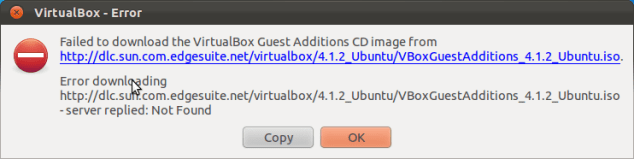
I’ve been having some trouble copying files from my host fileshare (\\vboxsvr), and the internets recommended re-installing the guest additions. Unfortunately, trying to download the guest additions iso resulted in the error below:

Error downloading VBox Guest Additions iso

Some frantic searching of the VBox forums offered a solution: download the guest additions for the previous version (4.1.0), and put them in the location VBox expects to find them (either /usr/share/virtualbox/VBoxGuestAdditions.iso or /usr/lib/virtualbox/additions/VBoxGuestAdditions.iso).

sudo mv VBoxGuestAdditions_4.1.0.iso /usr/share/virtualbox/VBoxGuestAdditions.iso

And now I can copy files without any problems, hurray!

Arg<T>.Matches considered harmful?

I’m a fairly heavy user of RhinoMocks (although, given the choice, I’d rather use FakeItEasy).

One of my few complaints about it is the poor diagnostics when an assertion fails. One particularly dangerous combination is AssertWasCalled with Arg<T>.Matches:

public void A_test()
{
    var frobulator = MockRepository.GenerateStub<IFrobulate>();
    var cromulator = new Cromulator(frobulator);

    cromulator.Cromulate();

    frobulator.AssertWasCalled(f => f.Frobulate(Arg<Bar>.Matches(b => b.This == "something" && b.That == "somethingelse")));
}

The problem with this is that, if the assertion fails, you don’t know whether This or That (or both) was not what was expected.

One option is to assert each property separately:

public void A_slightly_better_test()
{
    var frobulator = MockRepository.GenerateStub<IFrobulate>();
    var cromulator = new Cromulator(frobulator);

    cromulator.Cromulate();

    frobulator.AssertWasCalled(f => f.Frobulate(Arg<Bar>.Matches(b => b.This == "something")));
    frobulator.AssertWasCalled(f => f.Frobulate(Arg<Bar>.Matches(b => b.That == "somethingelse")));
}

Alternatively, you can use Do to capture the object you want to inspect and then assert normally:

public void A_slightly_different_test()
{
    var frobulator = MockRepository.GenerateStub<IFrobulate>();
    Bar bar = null;
    frobulator.Stub(f => f.Frobulate(Arg<Bar>.Is.Anything))
        .Do((Func<Bar, string>)(b => { bar = b; return ""; }));
    var cromulator = new Cromulator(frobulator);

    cromulator.Cromulate();

    Assert.That(bar, Is.Not.Null);
    Assert.That(bar.This, Is.EqualTo("something"));
    Assert.That(bar.That, Is.EqualTo("somethingelse"));
}

And yes, both options are very ugly! Of course, what you should really do is use a custom matcher :)

Copying VirtualBox hard disks

If you take a copy of a VirtualBox hard disk (.vdi file), in the hope of attaching it as another VM, you may receive an error similar to this:

Failed to open the hard disk /home/blah/blah/blah.vdi.

Cannot register the hard disk 'home/blah/blah/blah.vdi' {some-guid} because a 
hard disk 'home/blah/blah/foo.vdi' with UUID {some-other-guid} already exists.

Result Code: NS_ERROR_INVALID_ARG (0x80070057)
Component: VirtualBox
Interface: IVirtualBox {c28be65f-1a8f-43b4-81f1-eb60cb516e66}

Thankfully the internets soon provided an answer, although the syntax has changed slightly:

VBoxManage internalcommands sethduuid blah.vdi

(Although the correct solution, of course, is to use VBoxManage clonehd in the first place!)

Returning more than one thing from a method in C#

Wanting to return more than one thing from a method is a pretty common scenario. For example, a response and how long it took to retrieve it.

Like anything, there’s more than one way to go about this. You could use an out (or ref) parameter:

public void DoIt()
{
    TimeSpan duration;
    var response = GetResponse(out duration);
    // do something with response & duration
}

private string GetResponse(out TimeSpan duration)
{
    var stopwatch = Stopwatch.StartNew();
    var response = ...;
    stopwatch.Stop();
    duration = stopwatch.Elapsed;
    return response;
}

Or return a (private nested) class, or struct:

public void DoIt()
{
    var result = GetResponse();
    // do something with result.Response & result.Duration
}

private Result GetResponse()
{
    var stopwatch = Stopwatch.StartNew();
    var response = ...;
    stopwatch.Stop();
    return new Result 
    {
        Response = response,
        Duration = stopwatch.Elapsed
    };
}

private class Result
{
    public string Response { get; set; }
    public TimeSpan Duration { get; set; }
}

But .NET 4.0 gives us one more option, an anonymous type:

public void DoIt()
{
    var result = GetResponse();
    // do something with result.Response & result.Duration
}

private dynamic GetResponse()
{
    var stopwatch = Stopwatch.StartNew();
    var response = ...;
    stopwatch.Stop();
    return new
    {
        Response = response,
        Duration = stopwatch.Elapsed
    };
}

Same effect, less code!

Getting the type being constructed when using a factory method

When registering a type to be constructed by a factory method, it is sometimes important to know what type the instance is being constructed for.

For example, when using log4net you might want to inject a logger for that specific type.

I knew how to do it using StructureMap:

For<ILog>().Use(s => LogManager.GetLogger(s.Root.ConcreteType));

But today I had to work out how to do it with Castle. (It’s pretty similar).

Component.For<ILog>().UsingFactoryMethod((k, cm, cc) => LogManager.GetLogger(cc.Handler.Service))

Sharing files between Ubuntu and a Windows VirtualBox

I’m currently running Ubuntu (11.04) with Windows in a VirtualBox, both at work and at home.

Every once in a while I have a need to share a file in one direction, or the other. So here are my notes on how to do it, for future reference!

Mounting a Windows share from Ubuntu is pretty easy:

  1. Share the folder, if you haven’t already
  2. Open your Home Folder, and go to File -> Connect To Server…
  3. Select “Service Type”: Windows Share
  4. Enter the server name, and logon credentials
  5. Job’s a good ‘un

Going the other way is a little more involved, and I think you need the Guest Additions installed:

  1. In the vbox instance menu, select Devices -> Shared folders
  2. Either right click and “Add Shared Folder”, or press Ins
  3. Select “Other” from the folder path drop down, and choose the host folder you want to access (tick “Make Permanent” if you’re going to need it in future)
  4. Back in Windows land, open Explorer and go to Tools -> Map Network Drive
  5. Your share will be called \\vboxsvr\<SHARE_NAME> (you should be able to browse to it if you’re not sure what it’s called)
  6. Done